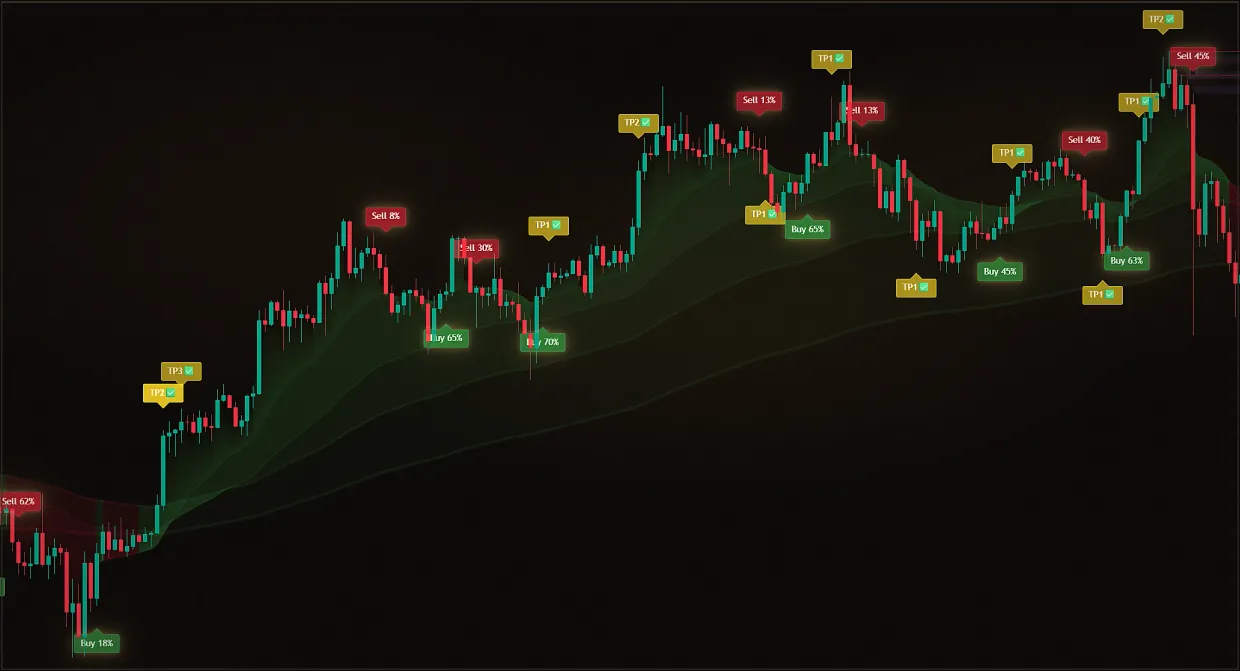
Midas Quick Start: Demo, Setup and the First Signal
Start Midas in three ordered steps. First, request the seven-day demo with the public username shown in your TradingView profile. Second, add Midas Up and Midas Down from Invite-only scripts. Third, treat the first Buy or Sell mark as a prompt to review the chart, not as an instruction to enter a trade.
The demo contains exactly two indicators, requires no card or payment, and is tied to one TradingView username. Confirm success by checking that both indicators appear on the chart and that the verified access flow shows the demo status.
Video lessons on this topic
 14 min
Midas quick start from zero
 13 min
Live session: trading with the indicator
 13 min
Step-by-step indicator walkthrough
 21 min
Detailed lesson: configure Midas for your trading style
 3 min
3 minWhat the Midas ecosystem includes
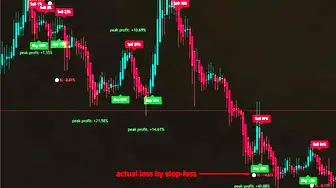 12 min
Using the indicator in practice
 10 min
How Midas differs from free indicators
 11 min
Do Midas signals repaint?
 8 min
8 minWhich markets Midas indicators support
 11 min
How Midas helps avoid common trader mistakes
 9 min
9 minHow to get the most from the Midas Academy
 6 min
6 minMidas VIP Club: how the community works
 5 min
5 minHow to get Midas indicators for free
Updated: · Midas Team
- 1
Activate the demo with your TradingView username
About 3 minutesSend the public username shown in your TradingView profile to the verified Midas access bot. Never send a password. The seven-day demo includes Midas Up and Midas Down, with no card or payment.
- 2
Add Midas Up and Midas Down to the chart
About 1 minuteIn TradingView, open Indicators, choose Invite-only scripts, add Midas Up and then Midas Down, and mark both as favourites for quick access.
- 3
Read the first signal in context
About 1 minuteA Buy or Sell arrow is a reason to review the chart, not an instruction to enter. Check direction, stop-loss, three targets and the position projection against your own rules.
Midas is running and you have reviewed the first signal. Next, configure presets, filters and alerts for your process, or compare the paid plans.
What Midas does in the trading workflow
Midas is a TradingView chart-analysis toolkit for markets available on the platform, including cryptocurrencies, shares, currency pairs, indices, commodities and futures, on timeframes from one minute to one month. It includes five presets, non-repainting historical Buy and Sell marks, and alerts through TradingView and Telegram.
Midas is not an autopilot or a guarantee of results. It organises repetitive analysis and highlights changing market conditions; the trader remains responsible for the decision, execution and risk.
- Midas Up is the upper-chart indicator for trend direction and areas of interest. Use it to define direction and the zones where price deserves attention.
- Midas Down is the lower indicator for timing and confirmation. Use it to review whether a possible entry or exit is supported by the current wave.
Read this before the first trade
- Midas is an analytical toolkit, not a signal bot that should be followed into every trade.
- A signal highlights possible growth or decline; it is not an order to enter. Sideways markets can produce weak setups.
- Open a trade only after reviewing the chart against a strategy you understand.
- Begin on historical data or in TradingView's market simulator, use virtual positions, then move to real capital only with defined stops and risk management.
Quick-start questions
Which markets and assets do the indicators support?
Midas works with markets available on TradingView, including cryptocurrencies, shares, currency pairs, indices, commodities and futures, on timeframes from one minute to one month. Choose the preset and settings for the task rather than installing a separate indicator for each asset.
Is Midas for scalping or long-term investing?
Both. Presets change signal speed: lower timeframes support shorter moves, while higher timeframes can support longer-horizon analysis. Change the preset in settings rather than replacing the indicator.
Use the same strategy preset in the upper and lower indicators so that their analysis remains aligned.
Do the indicators receive updates?
Yes. The Midas team maintains the indicators and adds features. Updates are included while the subscription is active.
When TradingView shows the update icon next to an indicator name, open it and choose the latest version.
How is access activated after payment?
Use the verified Midas bot to see the available payment methods. Access is attached automatically to the public TradingView username supplied during activation.
Why pay if some underlying techniques are publicly known?
Midas is an integrated analytical system, not a loose collection of scripts. Its tools share analysis, alert logic, strategies, targets, take-profit references and stop-loss settings.
The product also includes original tools, the Midas Academy and the private Midas VIP Club while access is active.
What is included in the price, and is it expensive?
Every paid subscription includes the indicators, the Midas Academy and Midas VIP Club for the subscription term.
For comparison, similar indicators from major international services cost around $40 to $120 per month, with lifetime access starting at roughly $497, and almost none offer a free trial (market comparison, July 2026).
If the workflow does not suit your process, you can stop after the demo without purchasing a subscription.
Test Midas on your own TradingView chart
- Seven days free: Midas Up and Midas Down on your TradingView chart
- No card or prepayment: access is linked to one public TradingView username
- Markets available on TradingView and timeframes from one minute to one month; choose settings for the asset and trading style
No card. No payment. A TradingView username is public; never send a password.
8,400+ Midas indicator installations · 300+ client reviews · active since 2024