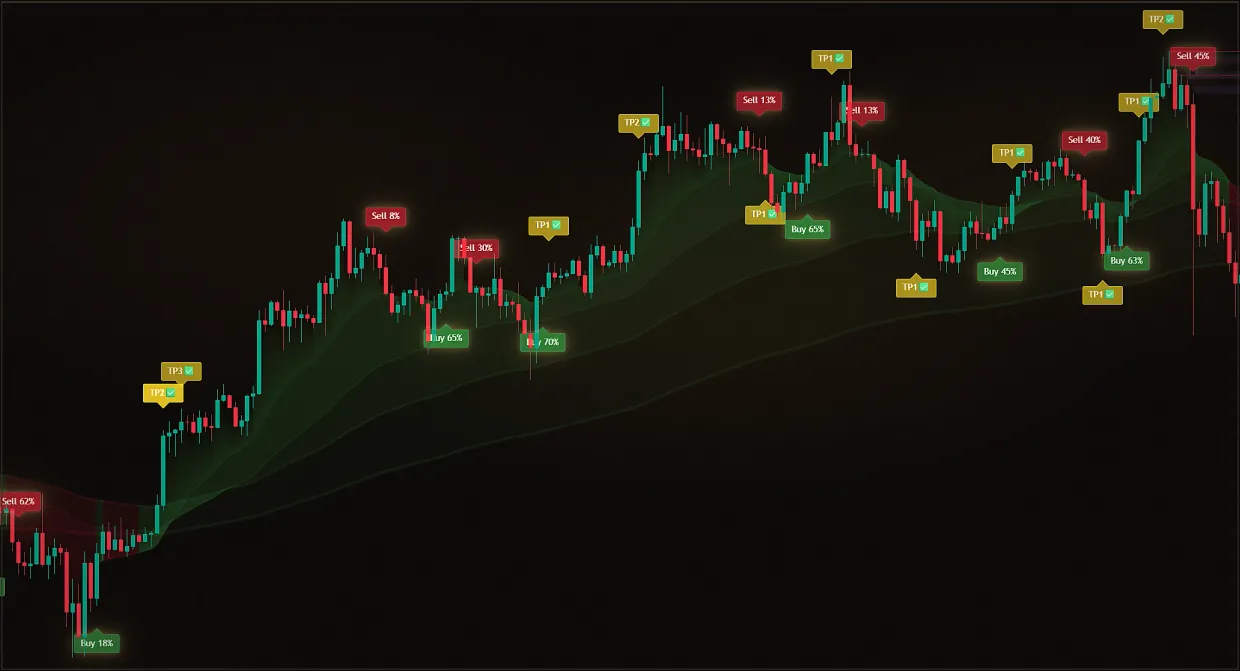
There are many signals on the chart, half of them run against the move, and you spend time on entries that have little chance from the start.
No filter.
There are many signals on the chart, some against the trend, and trading against the move adds noise and false entries.
With a filter.
Weak signals are hidden, the chart is cleaner and entries are more logical: you trade with the market direction, not against it.
The signal filter hides entries against the current trend: it determines the market direction and removes signals that contradict it from the chart. Open the gear next to the indicator name and select option 3, "Filter signals against the trend".
The easiest option to start with is the price channel: Buy signals remain only when the channel is green and rising, while Sell signals remain only when it is red and falling. EMA 200 is stricter: signals appear only on the corresponding side of the average. The other options are money flow and the trend ribbon. Filters work across TradingView markets and timeframes from one minute to one month; test the settings for each asset. The result is visible immediately: fewer signals and none against the trend.
Updated: · Midas Team
How to enable a signal filter
Open the settings.
Use the gear ⚙️ next to the indicator name.
Select the filter in option 3
Start with the price channel, the most obvious option.
Item "Filter signals against the trend" and a list of filter options
How to choose a filter
The filter's job is simple: identify the current market direction and hide signals that run against it. There are four options; open a tab to compare them.
The Buy is only shown when the channel is green and upwards, Sell is only shown when the channel is red and downwards.
Start with this option to see the difference between unfiltered noise and a clean trending market.
A stricter option: Buy appears only when price is above the selected moving average, and Sell only when it is below.
- EMA 20 and EMA 50 - Fast filter, more signals remain
- The EMA 100 and EMA 200 are a strict filter for conservative scenarios.
Buy signals appear only when money flow is rising, and Sell signals only when it is falling. This is useful if you already follow the lower indicator and want the upper indicator to agree with it.
The easiest option to check visually: Buy signals only with a green ribbon, and Sell signals only with a red ribbon. The ribbon is visible on the lower indicator, so you can check the filter without opening settings.
What changes after a filter is enabled
The difference is almost immediately apparent, and it's in four things:
- The signals are getting smaller, and some of the noise is gone.
- Some entries against the move disappear.
- The chart becomes cleaner, making decisions easier.
- It is more comfortable to work with the indicator, especially while you are getting used to the system.
Signal-filter questions
Which filter is best to choose first?
The price channel or EMA 200 is the easiest way to compare random unfiltered signals with a clean trending market.
What is the difference between the EMA 200 and the price channel?
The channel is less strict, so more signals remain on the chart. EMA 200 filters out more entries against the main move and suits more conservative scenarios.
Do I need to turn on multiple filters at once?
No. If you enable everything, you will not know which filter affects the signals. Choose one filter, test it and add complexity only if needed.
How do I know if the filter I choose is right for me?
Do not guess; test it. Scroll back on your asset and timeframe, enable the filter and compare signal behaviour. If the chart becomes cleaner and clearer, the filter suits your setup.
Look at quality as well as quantity: are there fewer clearly weak entries, and do the remaining ones fit the overall move better?
What mistakes do beginners make most often?
They choose a complex filter without understanding its logic, do not test settings on historical data, and treat every signal as an entry command. A filter improves selection but does not replace reading the chart.
Why do you need a filter if you already have signals?
Without a filter, some of the signals go against the main movement and create unnecessary noise. The filter makes Midas manageable: removes excess, makes it easier to read the chart and makes trading more systematic.
That’s why for many, it’s not a secondary setup, but one of the most useful features in a subscription.
Did this guide help?
Thank you. Your answer was recorded.
Thank you for your feedback. You can continue in the English-language Midas bot. Open the English bot
Test Midas on your own TradingView chart
- Seven days free: Midas Up and Midas Down on your TradingView chart
- No card or prepayment: access is linked to one public TradingView username
- Markets available on TradingView and timeframes from one minute to one month; choose settings for the asset and trading style
No card. No payment. A TradingView username is public; never send a password.
8,400+ Midas indicator installations · 300+ client reviews · active since 2024