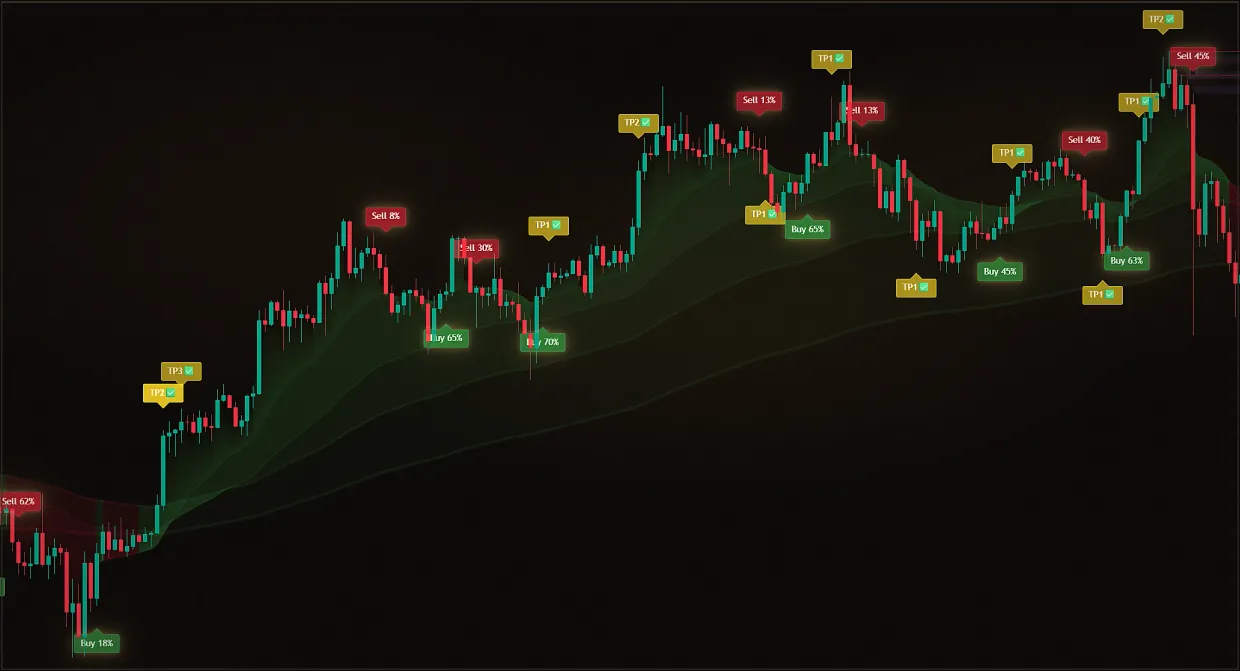
Access is purchased, but the chart is still empty: TradingView doesn’t tell you where to look for the indicator or what to click.
No connection.
You see a bare chart and wonder whether access has been granted while signals pass by unnoticed.
After connecting
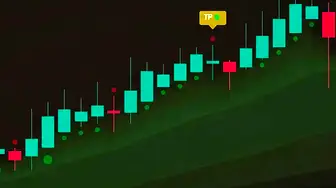
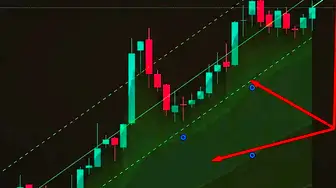
Midas Up and Midas Down appear on your chart, with zones and signals visible at once. We handle the setup.
After activating the demo, add the Midas indicators to the chart in three clicks: open TradingView, select Indicators on the chart toolbar, open Invite-only scripts and add Midas Up and Midas Down.
Mark both indicators with a star so they stay in Favourites. If Invite-only scripts is missing or empty, access has not been granted yet: return to @Multiindicator_bot and check your username. The demo includes exactly two indicators. The sections below explain what to do if they do not appear and where to find your TradingView username.
Updated: · Midas Team
Stage 1. Grant access to the correct account

Access is provided by @Multiindicator_bot. Open the bot, start it and send your TradingView username from your public profile address in one message. The seven-day demo requires no card or payment and includes exactly two indicators: Midas Up and Midas Down.
Access is granted to your TradingView account, so the username on TradingView must match the one you provided. Then add the indicators to the chart as the second step.
Stage 2. Add both indicators to the chart
Open the chart in TradingView - Midas supports platform-available markets and timeframes from 1 minute to a month. Three clicks. Switch the tab if you add from your phone: same path, different button names.
Click "Indicators" on the top panel of the chart
Open the section "Invite-only scripts"
It contains private scripts that you have access to.
Add Midas Up, then Midas Down
Click the indicator name to add it to the chart.
Press the star at each of them.
Indicators will get into the "Favorites" - then open in two clicks.
Open the chart and click “Indicators” in the chart menu
Select the section "Access is limited"
In the app, private scripts may have a different label; this is the same Invite-only scripts section as on desktop.
Add Midas Up, then Midas Down
Once added, both indicators work just like they do on a computer.
Mark as a favourite ⭐
The indicators will be in the “Favorites” and will open immediately.
Access and setup questions
Indicators are not on the list - what to do
An empty section, "Invite-only scripts," almost always means one thing: access hasn't been granted yet, not a breakdown. Nine times out of ten, it's a login or a late delivery. Access is immediately available, but sometimes the demo is confirmed manually by the operator.
Check these items in order; usually the issue is resolved at the first step:
- Did you send your username rather than an email address? The username is the text after /u/ in your profile URL; check it for typos or extra symbols.
- Re-run the bot with the /start command in @Multiindicator_bot and send the username again.
- Refresh TradingView: close and reopen Indicators -> Invite-only scripts so the private-script list can load.
- If this does not resolve the issue, contact Midas support through an available verified support channel and provide your TradingView username so the team can check access.
Where to get your login TradingView
The TradingView login is your username: the last part of your profile address, such as tradingview.com/u/ExampleUser. Send it in one message to @Multiindicator_bot.
Click on the avatar on the top right, open Profile, and look at the page address: what's after /u/ is the login. Copy the whole thing -- with capital letters, numbers, and underline marks, as written.
Almost all errors when sending a login are the same:
- Mail instead of nickname: the bot needs a nickname, the mail will not work, even if you have the entrance on it.
- Entry through Google or Apple: the nickname is still there - the site issued it at registration, see in the profile.
- Name instead of nickname: you can specify any displayed name in the profile, and the login is only the one that stands in the address after /u/.
Why You Don't Need a Password to Access
Nick is visible to anyone who opens your profile: it's public information, not an account key. It lets TradingView access private scripts, which is its regular mechanism. We can't physically log in to your account: the password is not shared with us, it's not stored anywhere, we don't accept deposits, and we have no relationship with your exchange.
If someone asks for a password from TradingView, it is not our bot and it is not Midas.
Changed TradingView account - how to transfer access
Contact Midas support through an available verified support channel and provide the old and new TradingView usernames so the team can transfer access.
Did this guide help?
Thank you. Your answer was recorded.
Thank you for your feedback. You can continue in the English-language Midas bot. Open the English bot
Test Midas on your own TradingView chart
- Seven days free: Midas Up and Midas Down on your TradingView chart
- No card or prepayment: access is linked to one public TradingView username
- Markets available on TradingView and timeframes from one minute to one month; choose settings for the asset and trading style
No card. No payment. A TradingView username is public; never send a password.
8,400+ Midas indicator installations · 300+ client reviews · active since 2024