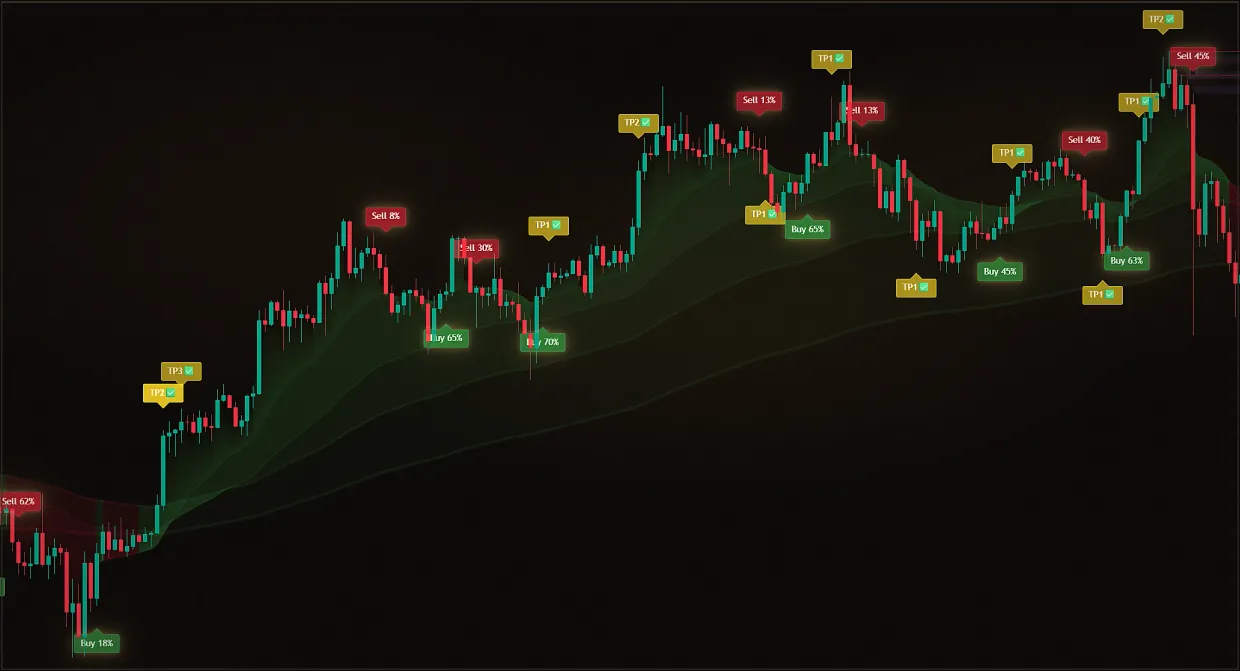
It is impossible to sit in front of charts for hours, and the best entries often appear while you are away.
Without alerts
The signal appeared while the tab was closed, so you missed it and entered late.
With alerts
The notification comes by itself - in the TradingView app or in Telegram. It remains to open the chart and decide.
Midas alerts can be received in two ways. Option 1 is notifications in the TradingView app. They work on any TradingView plan, but the number of active alerts depends on that plan: the free plan allows about one, while the paid Essential, Plus and Premium plans allow 20, 100 and 400 respectively.
Option 2 is to send your own alerts to Telegram through a webhook. This requires a paid TradingView plan with webhook support and the Midas Premium plan. That extra setup is optional: Midas Screeners already monitor more than 1,000 assets across six market classes, create chart screenshots with asset-specific settings and send a ready analysis. Screeners are included with every paid Midas plan.
Updated: · Midas Team
Midas Screeners can send ready-made signals to Telegram without Midas Premium or a paid TradingView plan. A personal webhook is needed only when you want your own indicator alerts delivered to your own bot.
Alerts in the TradingView app
Setup takes a couple of clicks: open the desired chart, select the asset and timeframe on which you want to receive signals.
Select an asset and timeframe
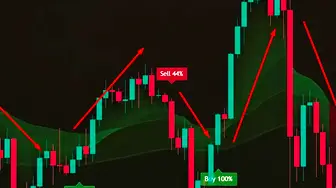
Buy/Sell alerts are more convenient on the lower timeframe where you choose the entry point. Use a higher timeframe for bounces, level breakouts and trend changes to reduce noise and receive only strong signals.
Open "Add Alert"
Three dots to the right of the indicator name -> "Add alert".
Indicator menu: the first item "Add alert" Select the signal type
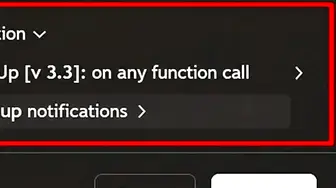
For the main Buy + Sell + TP notifications, leave “At any call to the alert function” – it is the default, nothing needs to be changed.
list of signal types in the warning window Or open advanced scenarios.
Open the same list, and select a specific event. The top and bottom indicator have different events.
Expanded list: bounce from a level, divergences, level breakout Set a deadline and a message.
Before saving, you can choose the duration of the alert, the text of the message and where it will come.
notification window: time, message and method of notification Choose the delivery method
Mobile application, pop-up in the browser, mail or sound signal - mark the ones that are convenient for you.
delivery of notification
Events that can trigger an alert
The alert is created for those parameters of the indicator that are selected at the time of creation: strategy, trend filter and other settings are fixed together with the alert.
- Buy & Sell + TP + SL - select "At any call of the alert function"
- The appearance of more than three divergences
- Rebound from the level - the price approached the level and pushed back
- Level breakout - the candle body closed beyond the level
- Pump and Dump are bright yellow circles
- Money flow reversals – the flow has started to rise or fall
- Trend-ribbon reversal: the ribbon turns upward or downward
- End of accumulation and distribution - the yellow histogram is over
- The reversal of the momentum of the price - a circle appeared on the impulse
When a signal is delivered
Midas signals do not repaint after a candle closes, which is an important part of their reliability. While a candle is still forming, however, a signal may change or disappear, so you choose the trigger timing in the settings.
- Working on the lower timeframes - it is better to wait for the candle to close: less noise and unnecessary positives.
- Working on the high timeframes - you can receive a signal before the candle closes to prepare in advance.
View and manage alerts
The right-hand TradingView menu lists all created alerts. You can edit, pause or delete them, review their trigger history, and click an alert to open the corresponding chart.
Custom Telegram alerts through a webhook
Telegram-alerts are not just notifications, but a ready-made infrastructure around signals: they can be sent to your personal, in your bots, work chats, closed groups and channels, sharing threads by strategy and markets.
You need a paid tariff TradingView (without it, webhook is not available) and a tariff Midas Premium.
Specify Telegram ID in the indicator settings
Use a verified Telegram ID lookup method to find your numeric Telegram ID.
The field "Your Telegram ID" in the indicator settings Create a bot through Telegram's verified bot-management service
You can have multiple bots if you want to split the signals by thread.
Copy the bot token
After the bot is created, Telegram's verified bot-management service provides a token. Keep it secret because it grants full access to the bot.
Telegram bot-management message with bot token Enable 2FA in TradingView
Two-factor authorization in the profile is a mandatory requirement of TradingView for webhook.
Two-factor authentication section in TradingView profile Insert the token in the webhook alert
In the notification window, mark “Webhook URL” and substitute your token for stars in the address https://api.telegram.org/bot***********/sendMessage – check that you have not erased anything but stars.
tab “Notifications” in the notification window: “Webhook URL”
How many alerts can you set up
Your TradingView plan sets the limit: Essential allows 20 alerts, Plus 100, and Premium 400.
If there is no extended subscription, that’s not a problem: any paid rate for Midas includes Screeners who monitor 1,000+ assets in six market classes themselves.
How to make a notification on 100 tickers
For this, you need a Premium tariff: when setting up the alert, you can specify not a specific ticker, but the entire list of favorites - at least several dozen or hundreds of tools at once.
What signals can be configured to alert in Telegram
Telegram leaves Buy & Sell and the lower indicator events - for this, "Any call of the alert function" is selected.
Separate Telegram alerts for bounces, breakouts, money-flow and trend-ribbon reversals, accumulation cycles and Pump/Dump cannot be configured individually; use "Any call of the alert function".
What happens to the scoring if I change the indicator settings?
Nothing: settings are fixed when you create the alert, and then you can change the parameters of the indicator as much as you want, and this does not affect the alerts that have already been created.
Did this guide help?
Thank you. Your answer was recorded.
Thank you for your feedback. You can continue in the English-language Midas bot. Open the English bot
The demo includes only Midas Up and Midas Down. The full Midas toolset requires a paid plan.
Test Midas on your own TradingView chart
- Seven days free: Midas Up and Midas Down on your TradingView chart
- No card or prepayment: access is linked to one public TradingView username
- Markets available on TradingView and timeframes from one minute to one month; choose settings for the asset and trading style
No card. No payment. A TradingView username is public; never send a password.
8,400+ Midas indicator installations · 300+ client reviews · active since 2024